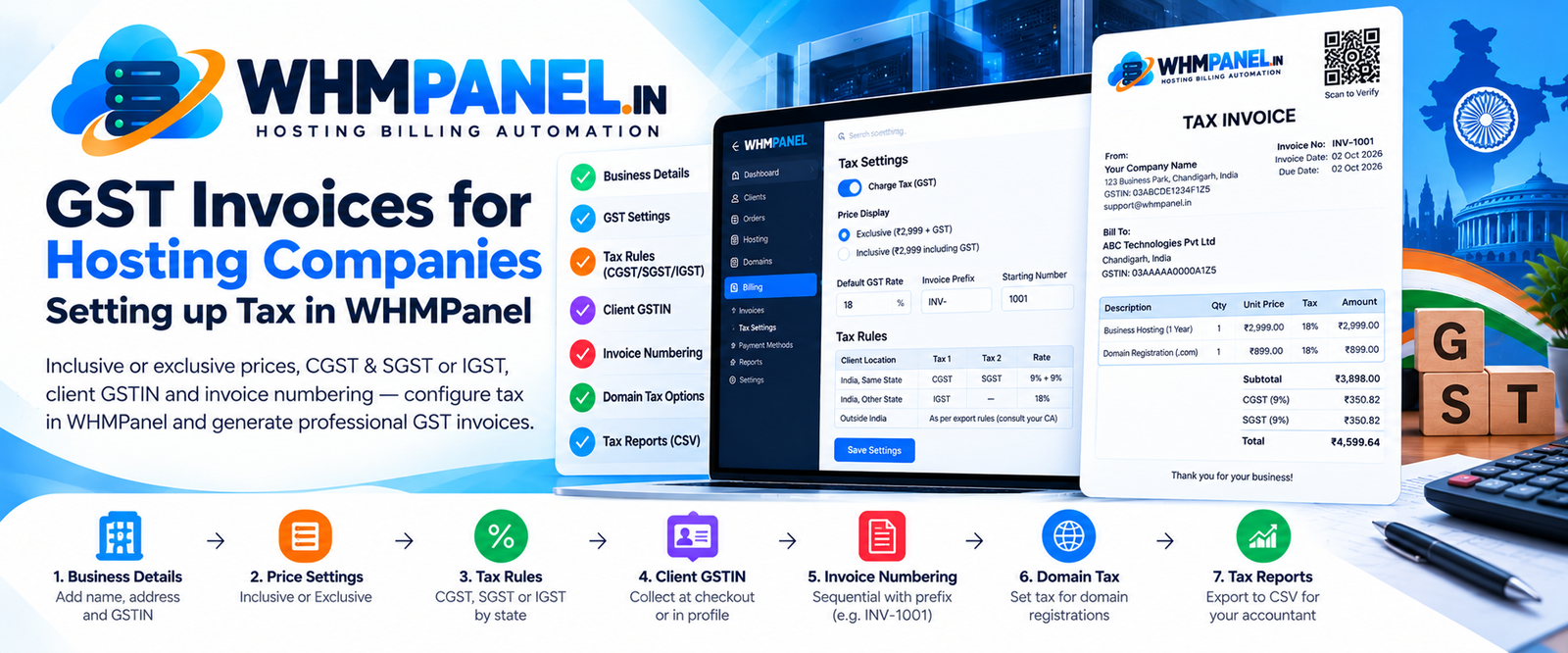
Correct invoices are not just about compliance — business clients need your invoice with their GSTIN to claim input tax credit, and a wrong invoice means support tickets and lost trust. WHMPanel has the pieces you need; this guide shows how to put them together.
This article explains the software settings. It is not tax advice — confirm rates, registration and invoice rules with your chartered accountant.
1. Your business details
Open Settings › Billing settings › Invoice details and enter your business name, address and GSTIN. They appear on every invoice, along with your logo if you want it.
2. Inclusive or exclusive prices
Under Billing settings › Tax, switch on Charge tax and decide how your prices are shown:
- Exclusive — "₹2,999 + GST". The tax is added at checkout. Common when most of your clients are businesses.
- Inclusive — "₹2,999 including GST". The tax is worked out from the price. Friendlier for individuals and small shops, because the price they see is the price they pay.
3. Tax rules per state
Under Tax rules, add a rule for each case. A common setup for a business registered in, say, Punjab:
| Client location | Tax 1 | Tax 2 |
|---|---|---|
| India, same state as you | CGST 9% | SGST 9% |
| India, another state | IGST 18% | — |
| Outside India | Depends on export rules — ask your CA | |
WHMPanel picks the rule from the client's billing country and state, so make sure Ask for a billing address at checkout is on.
4. The client's GSTIN
Clients can enter their GSTIN at checkout or later under Billing details. The field name is configurable — it says "GSTIN" by default. The number is printed on every invoice issued after it is added.
5. Invoice numbers
Invoice numbers must be sequential. Set your prefix (for example INV- or WP/2026-27/) and the starting number before your first invoice. WHMPanel takes the next number inside a database lock, so two invoices can never get the same number even when created at the same moment.
6. Domains and taxes
You can decide whether domain registrations and renewals are taxed, separately from hosting, with the Charge tax on domain registrations and renewals switch. Ask your accountant how your registrar bills you before deciding.
7. Reports for filing
At the end of each month, open Reports › Tax collected. It shows the tax per month and per rate, and can be exported to CSV for your accountant or your GST software.
Common mistakes
- Changing tax settings in the middle of a month without telling your accountant.
- Forgetting the billing state, which makes every invoice IGST.
- Editing paid invoices instead of issuing a credit note or refund.

0 comments